H&CO VMS 101 - Desktop

To help you navigate the VMS on your desktop, we have included some helpful tips and screenshots below. First, please log into the vendor site at https://vendor.haynesandcompany.com.
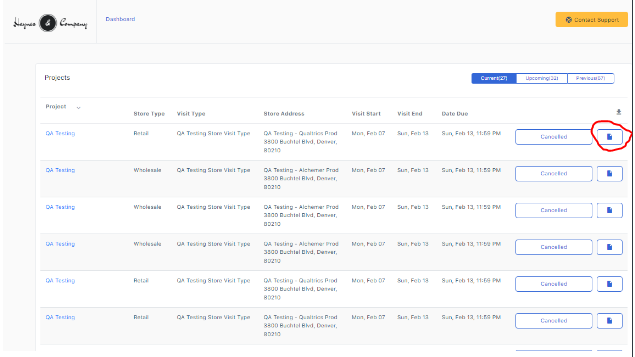
1. The main section of the dashboard will show your current, upcoming, and previous visits, as well as the data submission buttons. There is also a link to contact support in the upper right of the dashboard.
By clicking the icon on the very right (circled below), next to "resume submission" or "start submission", you will be able to get the template for your project.
2. If you scroll down on the dashboard under the visit window, you will see your Key Performance Indicators (KPI), or ratings, section. Please note that the range is 1 (red) to 4 (green).

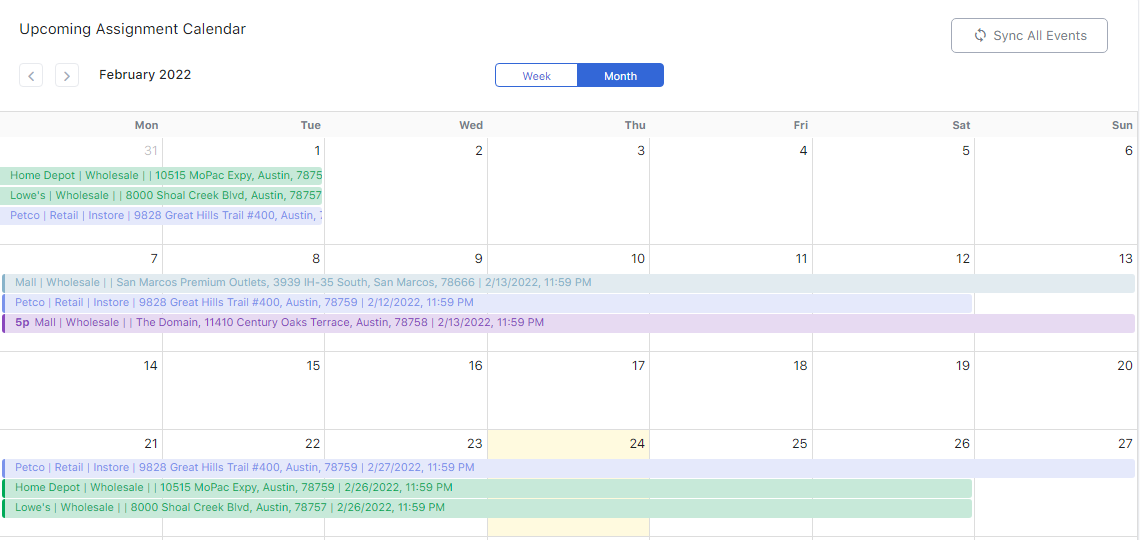
3. The next section will show the Upcoming Assignment Calendar, which also includes the options to Sync All Events with your personal calendar. Please see the steps to sync here: Syncing Your Visit Calendar
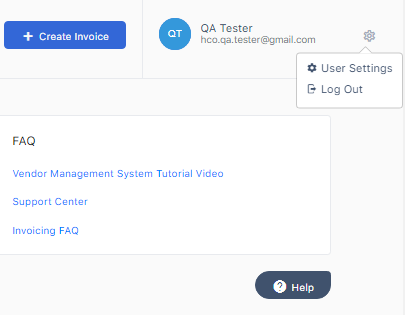
4. In the upper right-hand corner of the VMS you will see the option to create your invoice, update your settings (such as your personal information and password), as well as the FAQs/help section.
Comments
0 comments
Please sign in to leave a comment.